Just a quick one – Microsoft just added the Device group membership report to Endpoint Manager (service release 2206) which is pretty handy:

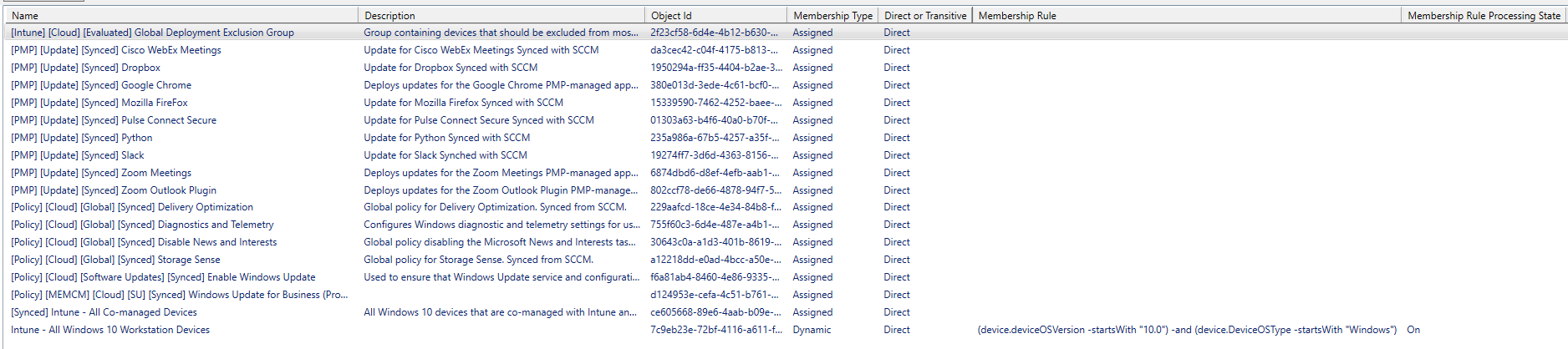
We can also get group membership with PowerShell. The function below lets you pass either a device name or Azure AD Id and it will return the group and transitive group membership. For dynamic groups, it also returns the membership rule. You can pipe to GridView for easy viewing.
Get-ManagedDeviceGroupMembership.ps1
This file contains hidden or bidirectional Unicode text that may be interpreted or compiled differently than what appears below. To review, open the file in an editor that reveals hidden Unicode characters.
Learn more about bidirectional Unicode characters
| ## Requires the Microsoft.Graph.Intune module | |
| ## Examples: | |
| $GroupMembership = Get-DeviceGroupMembership -DeviceName "PC001" | |
| $GroupMembership = Get-DeviceGroupMembership -AADDeviceId "c089201c-ad84-1234-5678-00d06dc86d8f" | |
| $GroupMembership | Sort Name | Out-GridView | |
| # Is device a member of a specific group | |
| $GroupMembership.Name -contains "Intune – All Windows 10 Workstations" | |
| # Function | |
| function Get-DeviceGroupMembership{ | |
| [CmdletBinding(DefaultParameterSetName='Name')] | |
| Param( | |
| [Parameter(Mandatory=$true,ParameterSetName='Name')] | |
| [ValidateNotNullOrEmpty()] | |
| [string]$DeviceName, | |
| [Parameter(Mandatory=$true,ParameterSetName='Id')] | |
| [ValidateNotNullOrEmpty()] | |
| [string]$AADDeviceId | |
| ) | |
| $ProgressPreference = 'SilentlyContinue' | |
| # Get a user token for MS Graph | |
| $GraphToken = Connect-MSGraph -PassThru | |
| # Find the object id | |
| If ($DeviceName) | |
| { | |
| $URL = "https://graph.microsoft.com/v1.0/devices?`$filter=displayName eq '$DeviceName'&`$select=id" | |
| } | |
| If ($AADDeviceId) | |
| { | |
| $URL = "https://graph.microsoft.com/v1.0/devices?`$filter=deviceId eq '$AADDeviceID'&`$select=id" | |
| } | |
| $headers = @{'Authorization'="Bearer " + $GraphToken} | |
| $D_Response = Invoke-WebRequest -Uri $URL -Method GET -Headers $Headers -UseBasicParsing | |
| If ($D_Response.StatusCode -eq 200) | |
| { | |
| # Check for duplicates | |
| $DeviceId = ($D_Response.Content | ConvertFrom-Json).Value.id | |
| If ($DeviceId.Count -gt 1) | |
| { | |
| Write-Warning "Multiple devices found. Please pass a unique devicename or AAD device Id!" | |
| Return | |
| } | |
| else | |
| { | |
| If ($DeviceId) | |
| { | |
| # Get the group membership | |
| $URL = "https://graph.microsoft.com/beta/devices/$DeviceId/memberOf?`$select=displayName,description,id,groupTypes,membershipRule,membershipRuleProcessingState" | |
| $G_Response = Invoke-WebRequest -Uri $URL -Method GET -Headers $Headers -UseBasicParsing | |
| If ($G_Response.StatusCode -eq 200) | |
| { | |
| $Groups = ($G_Response.Content | ConvertFrom-Json).Value | |
| } | |
| # Get the transitive group membership | |
| $URL = "https://graph.microsoft.com/beta/devices/$DeviceId/transitiveMemberOf?`$select=displayName,description,id,groupTypes,membershipRule,membershipRuleProcessingState" | |
| $TG_Response = Invoke-WebRequest -Uri $URL -Method GET -Headers $Headers -UseBasicParsing | |
| If ($TG_Response.StatusCode -eq 200) | |
| { | |
| $TransitiveGroups = ($TG_Response.Content | ConvertFrom-Json).Value | |
| } | |
| } | |
| else | |
| { | |
| Write-Warning "Device not found!" | |
| } | |
| } | |
| } | |
| else | |
| { | |
| Return | |
| } | |
| # If results found | |
| If ($Groups.Count -ge 1 -or $TransitiveGroups.Count -ge 1) | |
| { | |
| # Create a datatable to hold the groups | |
| $DataTable = [System.Data.DataTable]::New() | |
| $Columns = @() | |
| @( | |
| 'Name' | |
| 'Description' | |
| 'Object Id' | |
| 'Membership Type' | |
| 'Direct or Transitive' | |
| 'Membership Rule' | |
| 'Membership Rule Processing State' | |
| ) | foreach { | |
| $Columns += [System.Data.DataColumn]::new("$_") | |
| } | |
| $DataTable.Columns.AddRange($Columns) | |
| # Add the groups | |
| foreach ($Group in $Groups) | |
| { | |
| If (($Group.groupTypes | Select -First 1) -eq "DynamicMembership") | |
| {$MembershipType = "Dynamic"} | |
| Else {$MembershipType = "Assigned"} | |
| [void]$DataTable.Rows.Add($Group.displayName,$Group.description,$Group.id,$MembershipType,"Direct",$Group.membershipRule,$Group.membershipRuleProcessingState) | |
| } | |
| # Add the transitive groups | |
| foreach ($TransitiveGroup in ($TransitiveGroups | where {$_.id -NotIn $Groups.id})) | |
| { | |
| If (($TransitiveGroup.groupTypes | Select -First 1) -eq "DynamicMembership") | |
| {$MembershipType = "Dynamic"} | |
| Else {$MembershipType = "Assigned"} | |
| [void]$DataTable.Rows.Add($TransitiveGroup.displayName,$TransitiveGroup.description,$TransitiveGroup.id,$MembershipType,"Transitive",$TransitiveGroup.membershipRule,$TransitiveGroup.membershipRuleProcessingState) | |
| } | |
| Return $DataTable | |
| } | |
| } |

Apparently not working? Getting errors about the parameters.
Get-DeviceGroupMembership : A parameter cannot be found that matches parameter name ‘ComputerName’.
My bad, “ComputerName” in the example should be “DeviceName”.