For a long time I’ve used ConfigMgr to manage power settings on devices, but I recently decided to migrate this to Intune. There is more than one way to configure power settings in Intune, such as using the Settings Catalog or the Power Policy CSP. But these approaches do not (currently) allow management of all the possible power options that you can configure in a power plan. Even using an administrative template which allows the deepest level of configuration, won’t manage things like Link State Power Management or Processor power management settings.
Of course, if you don’t require management of those settings, then Intune’s native power management options might be sufficient for you. But in my case, I decided instead to simply deploy out a custom power plan using Intune remediations.
A couple of things to note about this approach:
- It will install the power plan if not already present and ensure it remains set as the active plan, but it will not prevent users from changing the settings of plan
- Not all settings in a power plan are available on all hardware configurations
- Consider whether any of the power settings may be controlled by another source, such as a security baseline
Here’s how I do it.
- In Control Panel > Power Options on an example device, click Create a power plan.
- Create and configure the plan according to your requirements
- Run powercfg /list in a cmd window and retrieve the Guid of the power plan you created
- Export the power plan to a file by running eg, powercfg /export C:\temp\<MyPowerPlan>.pow <PowerPlanGuidHere>
- Encode the power plan file to base64, for example by using my Base64 Convert app
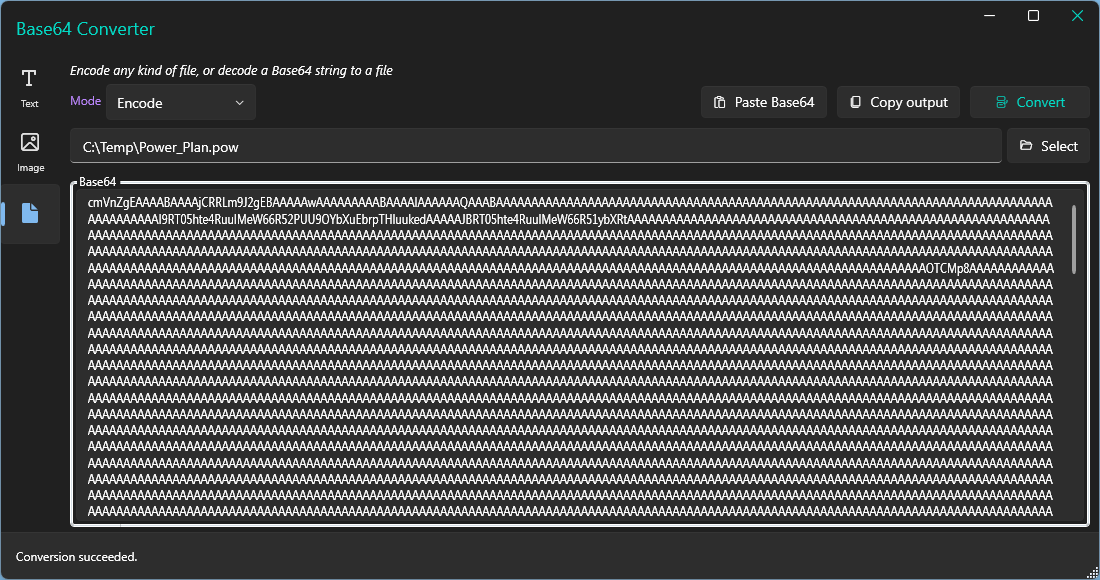
Next, download the detection and remediation scripts from my GitHub repo.
In the detection script, enter the name of the power plan in the $PowerPlanName variable on line 16:

In the remediation script, enter the name of the power plan in the $PowerPlanName variable on line 6, and paste the base64 encoded power plan string into the $PowerPlanFileBase64 variable on line 7.

Create and deploy the remediations script package in Intune to your target devices.
The detection script will check whether the named power plan exists and is active, if not it will call the remediation. The remediation script will install the power plan if its not already present by decoding the base64 string into a .pow file, import it and set it as active. If the power plan already exists but is not active, it will set is as active.

Trevor,
Thanks for this and this seems to have fixed an issue I was having. However as I am still stumbling my way through Intune, do you know where or how I can make this option not changeable by end users? Basically, just want to apply this plan and and have the other options greyed out.
I don’t know if that’s even possible.
Hi Trevor,
I have tried to run the above and we currently have multiple failed lines. Please see the below:
Exception calling “Combine” with “2” argument(s): “Illegal characters in path.”
At C:tempRemediation.ps1:46 char:5
~~~~~~~~~~~~~Exception calling “WriteAllBytes” with “2” argument(s): “Empty path name is not legal.”
At C:tempRemediation.ps1:47 char:5
~~~~~~~~~~~~~powercfg.exe : Invalid Parameters — try “/?” for help
At C:tempRemediation.ps1:50 char:5
~~~~~~~~~~~You cannot call a method on a null-valued expression.
At C:tempRemediation.ps1:65 char:9
~~~~~~~~~Remove-Item : Cannot bind argument to parameter ‘Path’ because it is null.
At C:tempRemediation.ps1:70 char:17
~~~~~~