In my last blog I provided an Intune Proactive remediations script that can be used to gather additional Windows Update information from your managed Windows devices and send the data to an Azure Log Analytics workspace to enhance your Windows Update reporting together with Microsoft’s Update Compliance solution.
In this blog, I will provide an Azure Automation Runbook that can be used to add even more Windows Update data to your LA workspace for Windows 10 and 11 devices. This is an abridged version of the runbook I use with my own Update Compliance solution and retrieves data from MS docs on:
- Windows update history (ie history of security and non-security cumulative updates per Windows release)
- Windows update support info (ie whether a Windows version and edition is currently in support and how long for)
- Latest Windows updates (ie what are the most recent security and non-security updates per Windows release including n-1 and n-2 updates)
- Documented Windows Update error codes and descriptions
The info is ‘scraped’ from MS docs pages, including:
After executing the runbook, you’ll have 4 new custom logs in your LA workspace:
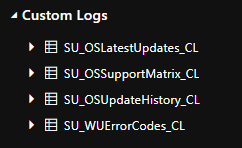
SU_OSLatestUpdates_CL

This table contains each Windows version with the build number, KB, release date and update type of the latest security monthly ‘B’ update, the latest preview update and the latest out-of-band update (if applicable), including for n-1 and n-2 updates. ‘LatestUpdate’ here means the latest CU whether a ‘B’ or ‘C’ or OOB update, and ‘LatestRegularUpdate’ is specifically the monthly ‘B’ security update.
SU_OSSupportMatrix_CL

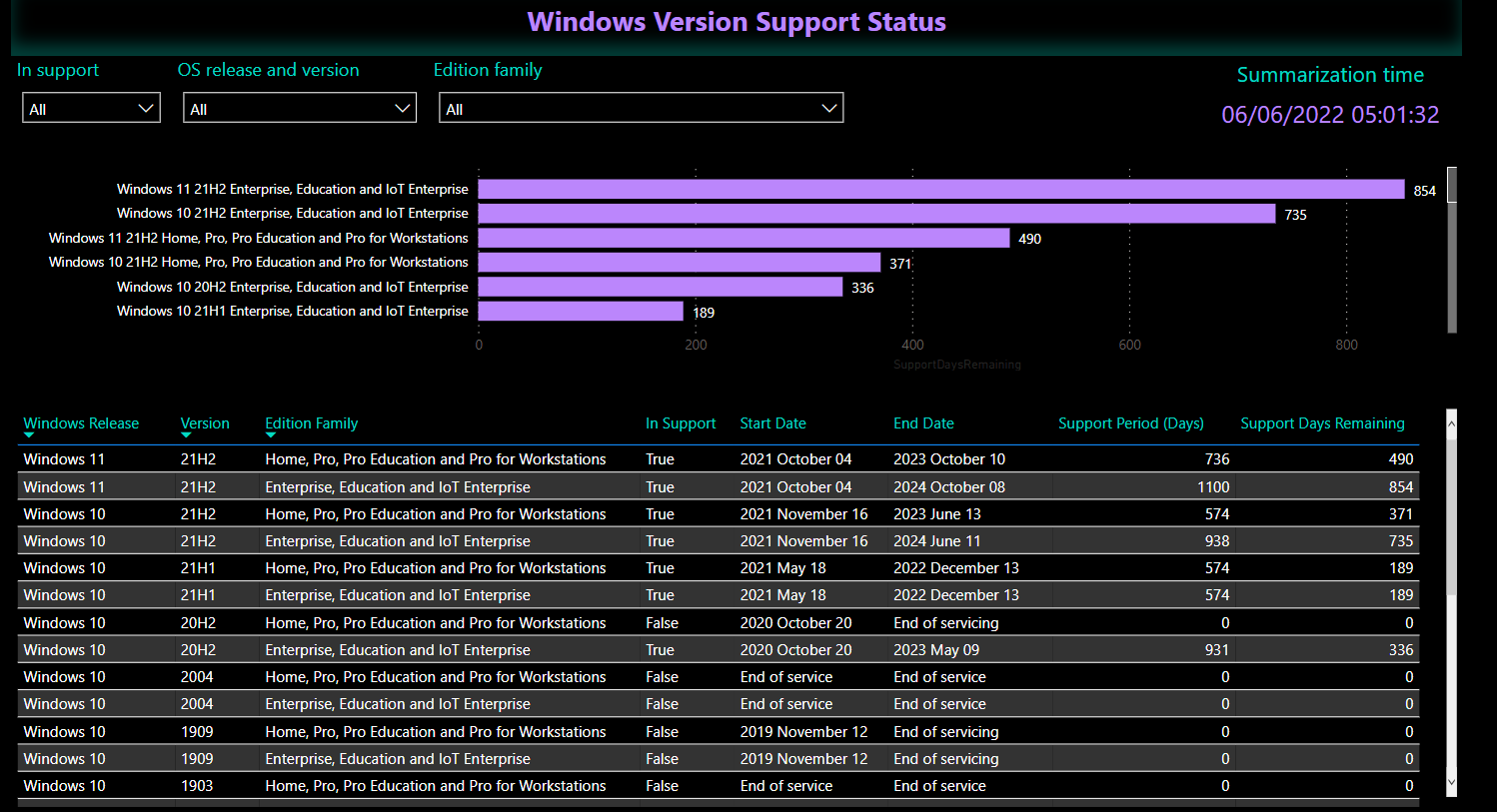
This table contains each Windows release with the release date, end of support date, support period, support days remaining, is it in support currently – per edition family, ie Home and Pro, or Enterprise and Education.
SU_OSUpdateHistory_CL

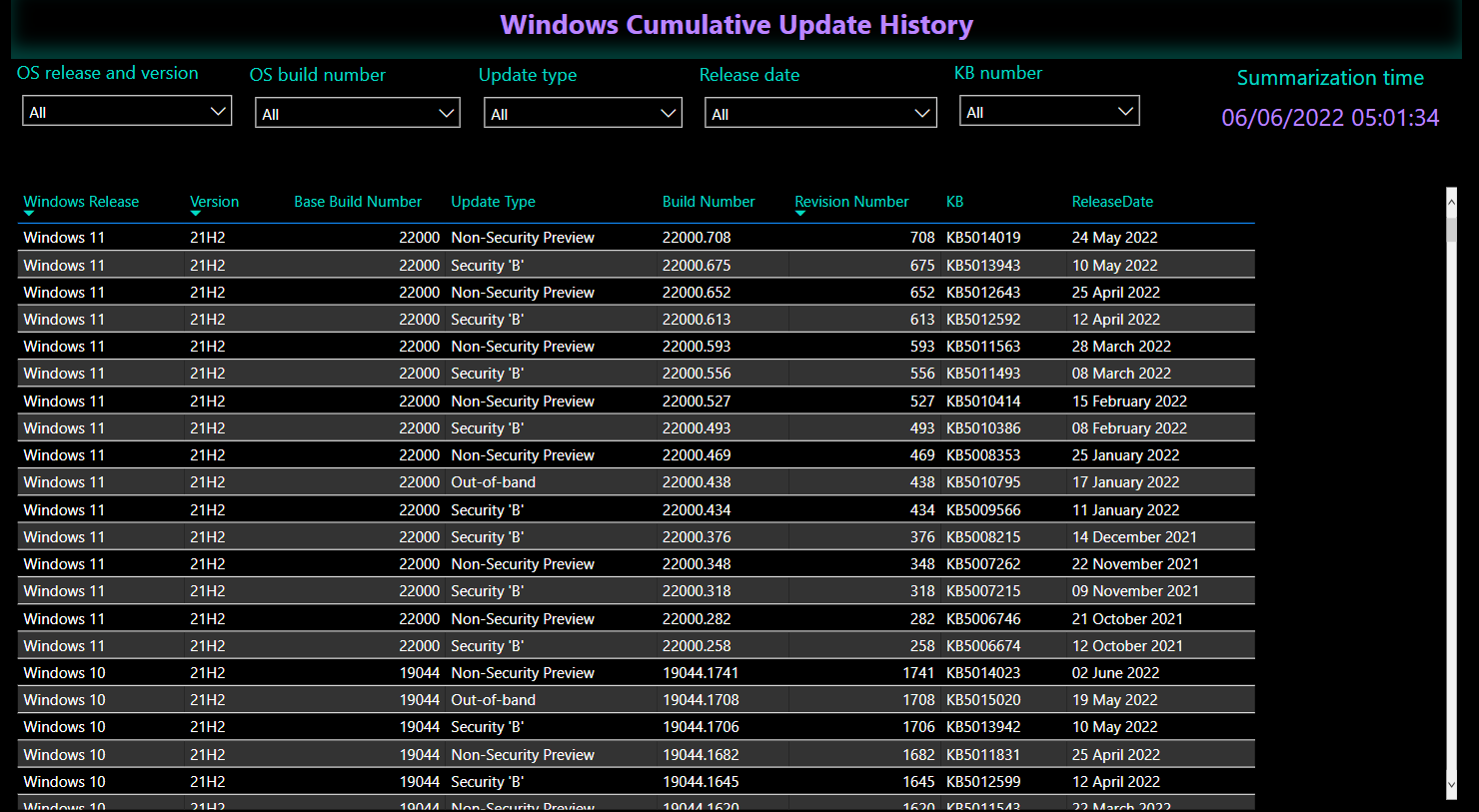
This table contains each cumulative update released for each Windows release including the KB number, build number, release date and update type.
SU_WUErrorCodes_CL

This table contains documented Windows Update error codes together with a category and friendly description.
Create the Azure Automation Runbook
I’ll assume you already have an Azure Automation account and Log Analytics workspace to work with. If you are already using Microsoft’s Update Compliance you can use the same Log Analytics workspace to avoid cross-workspace queries.
Create encrypted variables
In the Automation account, under Shared resources > Variables, create two encrypted variables called WorkspaceID and PrimaryKey. Copy the Workspace ID and the Primary Key of your Log Analytics workspace into the variables (get these from Settings > Agent management).
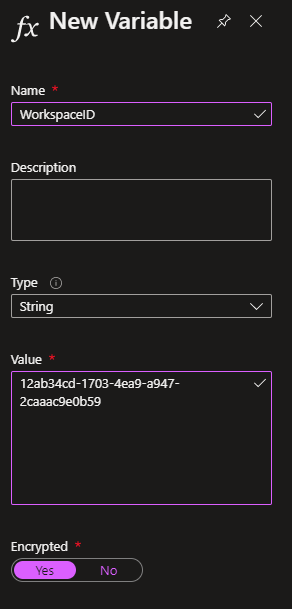
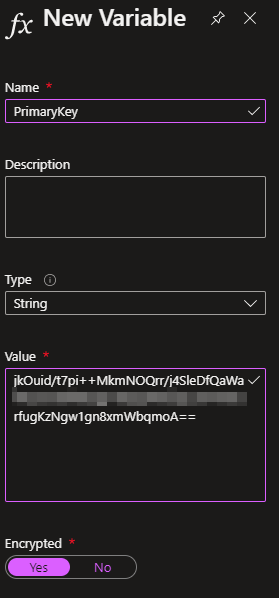
Create the Runbook
Create a new runbook with a super-original name and use the 5.1 runtime version.
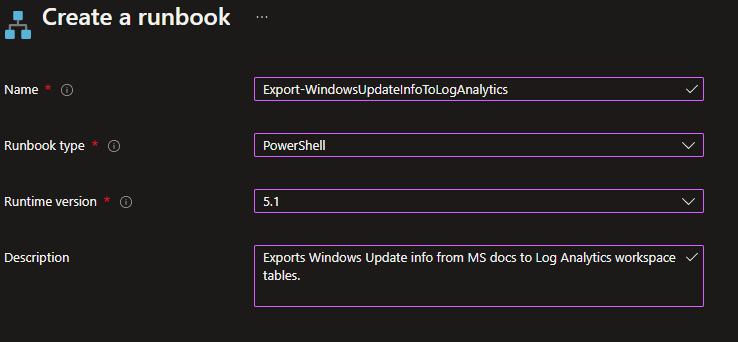
In the Edit PowerShell Runbook window, paste in the contents of this script

No changes are required to the script, with the possible exception of line 695. This line controls how frequently the Windows Update error code information is pulled from MS docs. Because this info rarely changes, I only run it twice a month on days 7 and 21, just to prevent the data from ageing out of the workspace due to the data retention period. You may wish to change one of those values to today for the first run so you’ve got some data right away.

Save and Publish your runbook and then start it! The runbook only takes seconds to execute and after a successful job you should see http 200 status codes output for the posts to the LA workspace.
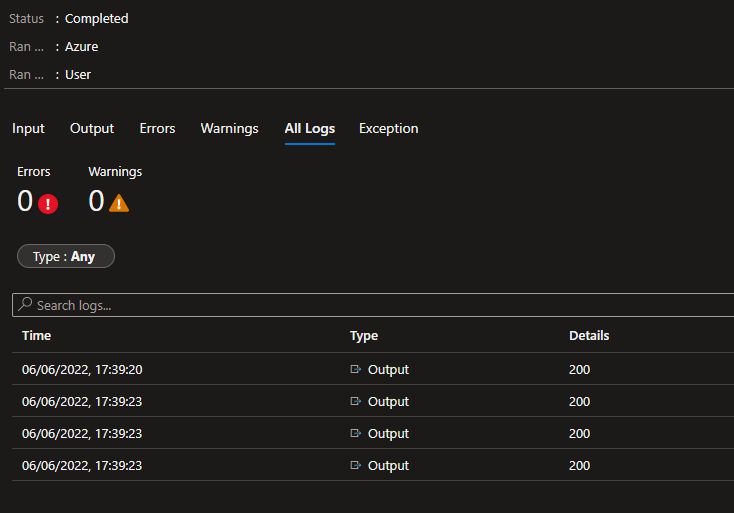
Assign a schedule to the runbook to keep the data up-to-date – I run mine every 4 hours because I also calculate device compliance with it, but otherwise a daily run might be sufficient.
Sample KQL queries
Once your data is available in the workspace, here are some example KQL queries you can use on the data.
Query the support info for Windows versions
SU_OSSupportMatrix_CL
| summarize arg_max(TimeGenerated,*) by
    Windows_Release=Windows_Release_s,
    Version=Version_s,
    EditionFamily=EditionFamily_s
| project
    Windows_Release,
    Version,
    InSupport=InSupport_s,
    EditionFamily,
    StartDate=StartDate_s,
    EndDate=EndDate_s,
    SupportPeriodInDays=SupportPeriodInDays_d,
    SupportDaysRemaining=SupportDaysRemaining_d,
    TimeGenerated
| order by Windows_Release,Version,EditionFamily desc
Query the update history for Windows versions
SU_OSUpdateHistory_CL
| summarize arg_max(TimeGenerated,*) by Windows_Release_s,OSVersion_s,OSBuild_s
| project
    Windows_Release=Windows_Release_s,
    OSVersion=OSVersion_s,
    KB=KB_s,
    OSBaseBuild=OSBaseBuild_d,
    OSBuild=OSBuild_s,
    OSRevisionNumber=OSRevisionNumber_d,
    ReleaseDate=ReleaseDate_t,
    Type=case(Type_s == "Regular","Security 'B'",
        Type_s == "Preview","Non-Security Preview",
        Type_s),
    TimeGenerated
| order by Windows_Release desc,OSVersion desc,ReleaseDate desc
Query documented Windows update error codes and descriptions
SU_WUErrorCodes_CL
| summarize arg_max(TimeGenerated,*) by ErrorCode_s
| project
    ErrorCode=ErrorCode_s,
    Message,
    Description=Description_s,
    Category
Query the latest updates for each Windows version
SU_OSLatestUpdates_CL
| summarize arg_max(TimeGenerated,*) by Windows_Release_s,OSVersion_s
| project
    TimeGenerated,
    Windows_Release=Windows_Release_s,
    OSBaseBuild=OSBaseBuild_d,
    OSVersion=OSVersion_s,
    LatestUpdate=LatestUpdate_s,
    LatestUpdateType=LatestUpdateType_s,
    LatestUpdateKB=LatestUpdate_KB_s,
    LatestUpdateReleaseDate=LatestUpdate_ReleaseDate_s,
    LatestRegularUpdate=LatestRegularUpdate_s,
    LatestRegularUpdateKB=LatestRegularUpdate_KB_s,
    LatestRegularUpdateReleaseDate=LatestRegularUpdate_ReleaseDate_s,
    LatestPreviewUpdate=LatestPreviewUpdate_s,
    LatestPreviewUpdateKB=LatestPreviewUpdate_KB_s,
    LatestPreviewUpdateReleaseDate=LatestPreviewUpdate_ReleaseDate_s,
    LatestOutofBandUpdate=LatestOutofBandUpdate_s,
    LatestOutofBandUpdateKB=LatestOutofBandUpdate_KB_s,
    LatestOutofBandUpdateReleaseDate=LatestOutofBandUpdate_ReleaseDate_s,
    LatestRegularUpdateLess1=LatestRegularUpdateLess1_s,
    LatestRegularUpdateLess1KB=LatestRegularUpdateLess1_KB_s,
    LatestRegularUpdateLess1ReleaseDate=LatestRegularUpdateLess1_ReleaseDate_s,
    LatestPreviewUpdateLess1=LatestPreviewUpdateLess1_s,
    LatestPreviewUpdateLess1KB=LatestPreviewUpdateLess1_KB_s,
    LatestPreviewUpdateLess1ReleaseDate=LatestPreviewUpdateLess1_ReleaseDate_s,
    LatestOutofBandUpdateLess1=LatestOutofBandUpdateLess1_s,
    LatestOutofBandUpdateLess1KB=LatestOutofBandUpdateLess1_KB_s,
    LatestOutofBandUpdateLess1ReleaseDate=LatestOutofBandUpdateLess1_ReleaseDate_s,
    LatestRegularUpdateLess2=LatestRegularUpdateLess2_s,
    LatestRegularUpdateLess2KB=LatestRegularUpdateLess2_KB_s,
    LatestRegularUpdateLess2ReleaseDate=LatestRegularUpdateLess2_ReleaseDate_s,
    LatestPreviewUpdateLess2=LatestPreviewUpdateLess2_s,
    LatestPreviewUpdateLess2KB=LatestPreviewUpdateLess2_KB_s,
    LatestPreviewUpdateLess2ReleaseDate=LatestPreviewUpdateLess2_ReleaseDate_s,
    LatestOutofBandUpdateLess2=LatestOutofBandUpdateLess2_s,
    LatestOutofBandUpdateLess2KB=LatestOutofBandUpdateLess2_KB_s,
    LatestOutofBandUpdateLess2ReleaseDate=LatestOutofBandUpdateLess2_ReleaseDate_s
| order by Windows_Release,OSVersion
Power BI
I’m a sucker for a nice Power BI report. Here’s a couple of examples of how you could report on this data:
Known Issues
Since MS docs update history does not contain updates for RTM releases, when a new feature update is released, there will be no update history reported until the release of the first CU.
A final note: Gary Blok has created a feedback item to make it easier to get Windows Release Information from Microsoft via an API. You can upvote it here: aka.ms/AAh5c1x

Hello,
i have tryed to deploy your solution
https://docs.smsagent.blog/microsoft-endpoint-manager-reporting/windows-update-for-business-custom-reporting
But after to run the first execution of this runbook, and second i have the same error
“After the first execution, wait at least 5-10 minutes then execute the runbook again. There should be no further errors once the new data has been ingested.”
but i have the same error 😦
can you help me plz because beacause i need to use your powerbi 🙂
Thx a lot in advance
Romain HERRERO
Have you checked your log analytics workspace to verify the tables were created and contain data?
Of course !
in my custom log of my workspace log, i have this list
Custom Logs
SU_AvailableUpdates_CL
SU_CompatMarkers_CL
SU_DeviceInfo_CL
SU_MDMUpdatePolicy_CL
SU_OSLatestUpdates_CL
SU_OSSupportMatrix_CL
SU_OSUpdateHistory_CL
SU_UpdateLog_CL
SU_WindowsSetup_CL
SU_WindowsSetupErrorCodes_CL
SU_WUClientInfo_CL
SU_WUErrorCodes_CL
SU_WUPolicySettings_CL
SU_WUPolicyState_CL
but when i run the runbook, i have this error message:
#endregion : Invocation of the Log Analytics query failed again: Operation returned an invalid status code ‘BadRequest’
+ CategoryInfo : NotSpecified: (:) [Write-Error], WriteErrorException
+ FullyQualifiedErrorId : Microsoft.PowerShell.Commands.WriteErrorException
Invoke-AzOperationalInsightsQuery : Operation returned an invalid status code ‘BadRequest’
At line:1244 char:19
+ … $Result = Invoke-AzOperationalInsightsQuery -Workspace $Workspace – …
+ ~~~~~~~~~~~~~~~~~~~~~~~~~~~~~~~~~~~~~~~~~~~~~~~~~~~~~~~~~
+ CategoryInfo : CloseError: (:) [Invoke-AzOperationalInsightsQuery], ErrorResponseException
+ FullyQualifiedErrorId : Microsoft.Azure.Commands.OperationalInsights.Query.InvokeOperationalInsightsQuery
Hello,
i have successfully deploy your solution but in PowerBI, i have not all device in compliance status
just 160 devices
for information, i have deployed successfuly the proactive remediation script on all 2000 devices
is it possible to check manually in log analytics ?
Thx in advance for your help !
Hi, I’ll need a bit more information about what exactly you are missing.
i have deploy your Windows Update for Business Custom Reporting from your blog
all is ok, i have deploy the remediation script
runbook are ok
but your PowerBi report i have only 160 devices appear, but i have deploy on all devices 2000 devices
i don’t know why i do not see all my devices in power bi report
Do you see all your devices in the LA logs?
Yes !
with this query:
SU_ClientComplianceStatus_CL
| summarize arg_max(SummarizationTime_t,*) by ComputerName_s
i see all my devices 1669 Devices
But with you query from your powerbi i see only 160 devices 😦
Ok, that’s good at least. Which query is not returning all the devices in the PBI report?
This query
= let Source = Json.Document(Web.Contents(“https://api.loganalytics.io/v1/workspaces/”&#”Workspace ID”&”/query”,
[Query=[#”query”=”SU_ClientComplianceStatus_CL
| where isnotnull(SummarizationTime_t)
| where DisplayVersion_s != “”Dev””
| summarize arg_max(SummarizationTime_t,*) by IntuneDeviceID_g
| project
SummarizationTime_t,
IntuneDeviceID_g,
LatestRegularUpdateStatus=LatestRegularUpdateStatus_s,
LatestRegularComplianceState=ComplianceStateRegular_s,
LatestRegularUpdateName=LatestRegularUpdateName_s,
LatestPreviewComplianceState=ComplianceStatePreview_s,
LatestPreviewUpdateName=LatestPreviewUpdateName_s,
LatestOutofBandComplianceState=ComplianceStateOutofBand_s,
LatestOutofBandUpdateName=LatestOutofBandUpdateName_s,
LatestRegularLess1ComplianceState=ComplianceStateRegularLess1_s,
LatestRegularUpdateLess1Name=LatestRegularUpdateLess1Name_s,
LatestPreviewLess1ComplianceState=ComplianceStatePreviewLess1_s,
LatestPreviewUpdateLess1Name=LatestPreviewUpdateLess1Name_s,
LatestOutofBandLess1ComplianceState=ComplianceStateOutofBandLess1_s,
LatestOutofBandUpdateLess1Name=LatestOutofBandUpdateLess1Name_s,
LatestRegularLess2ComplianceState=ComplianceStateRegularLess2_s,
LatestRegularUpdateLess2Name=LatestRegularUpdateLess2Name_s,
LatestPreviewLess2ComplianceState=ComplianceStatePreviewLess2_s,
LatestPreviewUpdateLess2Name=LatestPreviewUpdateLess2Name_s,
LatestOutofBandLess2ComplianceState=ComplianceStateOutofBandLess2_s,
LatestOutofBandUpdateLess2Name=LatestOutofBandUpdateLess2Name_s,
Windows_Release=Windows_Release_s,
OSVersion=OSVersion_s,
OSVersionSupportStatus=OSVersionSupportStatus_s,
LastSyncTime=LastSyncTime_t
| summarize
Count=dcount(IntuneDeviceID_g,4) by SummarizationTime_t,
LatestRegularComplianceState,
LatestRegularUpdateStatus,
LatestRegularUpdateName,
LatestPreviewComplianceState,
LatestPreviewUpdateName,
LatestOutofBandComplianceState,
LatestOutofBandUpdateName,
LatestRegularLess1ComplianceState,
LatestRegularUpdateLess1Name,
LatestPreviewLess1ComplianceState,
LatestPreviewUpdateLess1Name,
LatestOutofBandLess1ComplianceState,
LatestOutofBandUpdateLess1Name,
LatestRegularLess2ComplianceState,
LatestRegularUpdateLess2Name,
LatestPreviewLess2ComplianceState,
LatestPreviewUpdateLess2Name,
LatestOutofBandLess2ComplianceState,
LatestOutofBandUpdateLess2Name,
Windows_Release,
OSVersion,
OSVersionSupportStatus,
bin(LastSyncTime,1d)
| order by SummarizationTime_t desc
“,#”x-ms-app”=”OmsAnalyticsPBI”,#”timespan”=”P”&#”Data retention period”&”D”,#”prefer”=”ai.response-thinning=true”],Timeout=#duration(0,0,4,0)])),
TypeMap = #table(
{ “AnalyticsTypes”, “Type” },
{
{ “string”, Text.Type },
{ “int”, Int32.Type },
{ “long”, Int64.Type },
{ “real”, Double.Type },
{ “timespan”, Duration.Type },
{ “datetime”, DateTimeZone.Type },
{ “bool”, Logical.Type },
{ “guid”, Text.Type },
{ “dynamic”, Text.Type }
}),
DataTable = Source[tables]{0},
Columns = Table.FromRecords(DataTable[columns]),
ColumnsWithType = Table.Join(Columns, {“type”}, TypeMap , {“AnalyticsTypes”}),
Rows = Table.FromRows(DataTable[rows], Columns[name]),
Table = Table.TransformColumnTypes(Rows, Table.ToList(ColumnsWithType, (c) => { c{0}, c{3}}))
in
Table
i think i have found an issue, Many devices are the column “LastsyncTime_t” = null
i don’t know why 😦
Ok, I can confirm the query is still good. Make sure the data retention period you set in the report variables is sufficient to retrieve enough historic data. In your case, you could check that the Intune LastSyncTime is being successfully retrieved by the Remediation script – the code for that begins on line 450.
i have try this on my computer from your remediation script
try
{
# This one seems the most accurate
$LastSyncTime = Get-WinEvent -FilterHashtable @{
LogName=’Microsoft-Windows-DeviceManagement-Enterprise-Diagnostics-Provider/Operational’
ProviderName=’Microsoft-Windows-DeviceManagement-Pushrouter’
Id = 300
} -ErrorAction Stop |
Where {$_.Message -match “The operation completed successfully”} |
Select -First 1 -ExpandProperty TimeCreated |
Get-Date -Format “s” -ErrorAction SilentlyContinue
}
catch
{
$_.Exception.Message
try
{
# Fallback to this, not as accurate though
$LastSyncTime = Get-WinEvent -FilterHashtable @{
LogName=’Microsoft-Windows-DeviceManagement-Enterprise-Diagnostics-Provider/Admin’
ProviderName=’Microsoft-Windows-DeviceManagement-Enterprise-Diagnostics-Provider’
Id = 209
} -ErrorAction Stop |
Where {$_.Message -match “The operation completed successfully”} |
Select -First 1 -ExpandProperty TimeCreated |
Get-Date -Format “s” -ErrorAction SilentlyContinue
}
catch
{
$LastSyncTime = $null
$_.Exception.Message
}
}
and the result is good on my computer
PS C:\Users\rherrero-prest> $LastSyncTime
2023-07-22T07:53:28
But noting in log analytics 😦
only 160 device with this data
i don’t know why – strange
Strange indeed…
hi @rherreroprestredoutefr
were you able to find the solution for this issue?
I have the similar issue,
when running for the first time it does not finish with error:
Invocation of the Log Analytics query failed again: Operation returned an invalid status code ‘BadRequest’
+ CategoryInfo : NotSpecified: (:) [Write-Error], WriteErrorException
Tried after few hours but still no go
So I have output
Output: 200 x 2
then error about PArseTIme and then
“Let’s try the LA query again…”
“Invocation of the Log Analytics query failed again: